
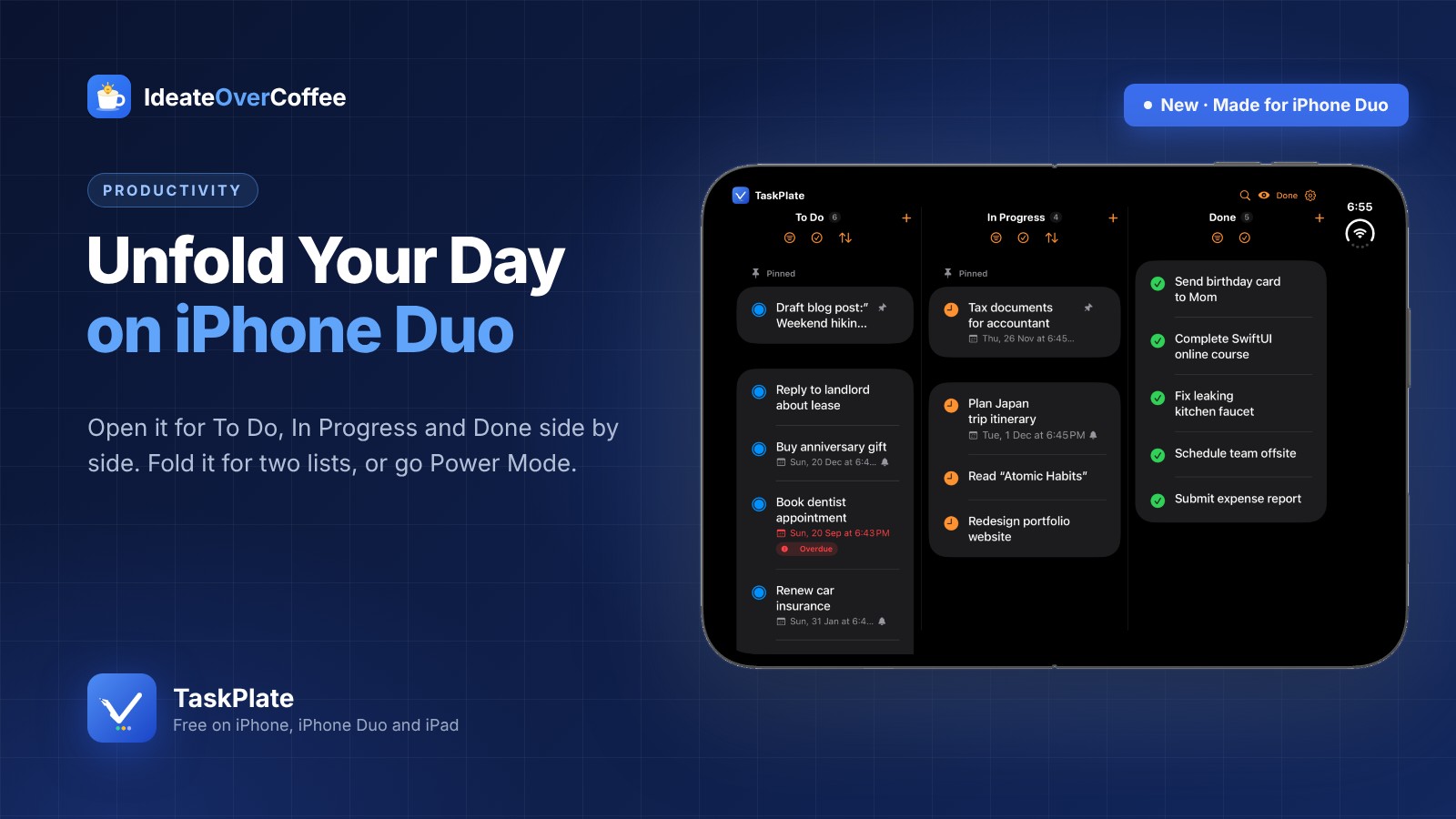
A to-do list on a phone has always been a keyhole. You see one list, then another, then you swipe back to check the first. iPhone Duo opens the door.
When you unfold iPhone Duo, you get a screen that’s nearly the size of a small tablet, in your pocket. Most apps simply stretch to fill it. TaskPlate was rebuilt for it. Open the phone, and your lists stop taking turns: everything you need to do, everything you’re working on and everything you’ve finished sit side by side, readable at a glance.
Here’s how TaskPlate makes the most of every way you hold iPhone Duo, and why it changes how a to-do list feels.
01 · Open it upYour whole day on one screen
Unfold iPhone Duo and turn it sideways. TaskPlate becomes a board: To Do, In Progress and Done, each in its own column.
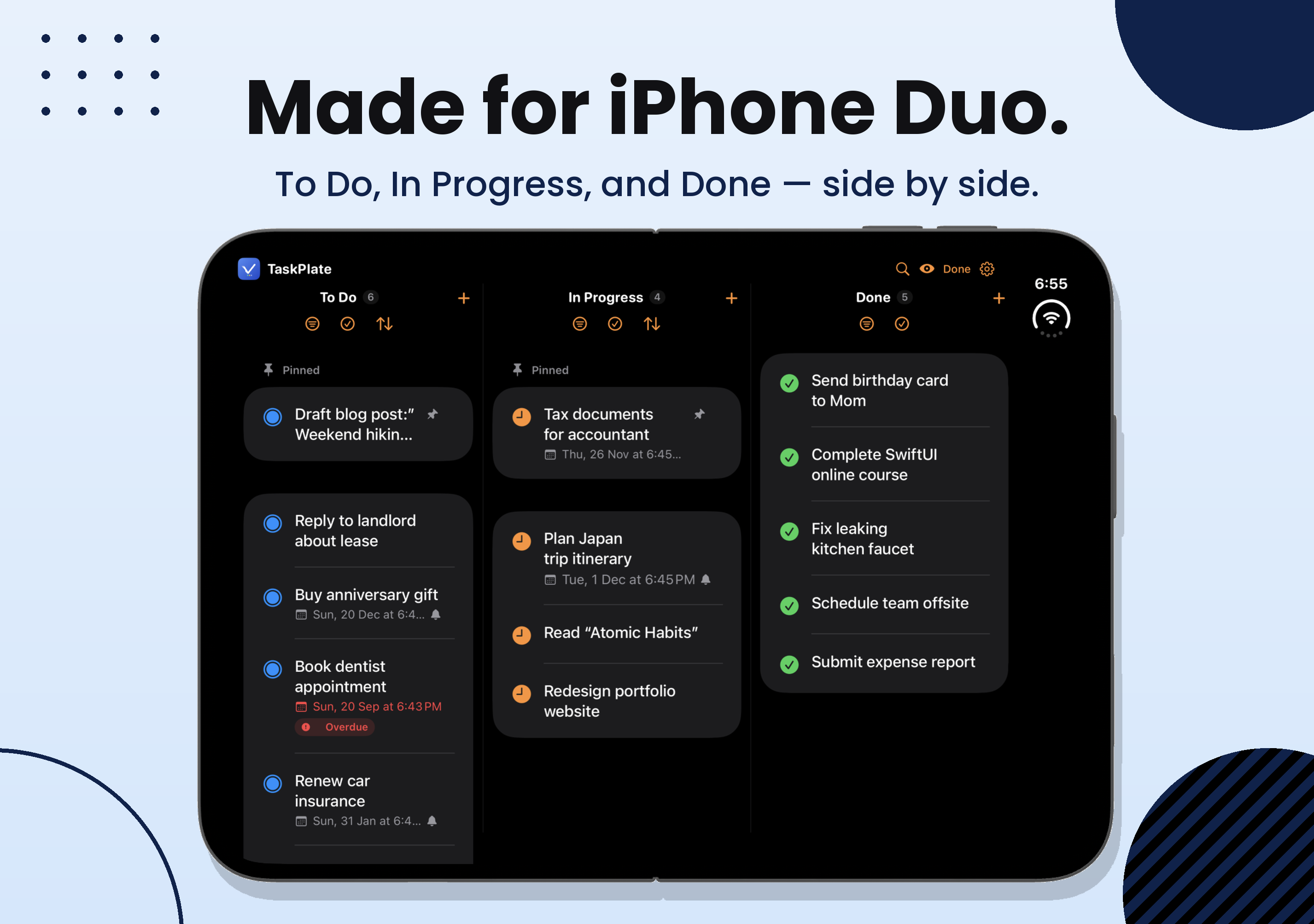
This is where iPhone Duo earns its price. There’s no switching between tabs to check what’s waiting and what’s underway, because it’s all in front of you. And with room to spare, each column gets its own tools right under its name:
- Filter any list by due date, from this week to this year, earliest first.
- Select several tasks in one list and move or delete them together.
- Reorder a list by dragging tasks into the order that makes sense to you.
One search, at the top of the screen, looks through every list at once, task names, notes and checklist items included. Type a word and all three columns narrow together.
A to-do list works when you can see it all. iPhone Duo finally gives you the room.
02 · Hold it uprightOne list, with room to breathe
Not every moment calls for the whole board. Hold the open iPhone Duo upright and TaskPlate gives you a single list on a big screen: long task names on one line, due dates and checklist progress at a glance, and the floating + ready for quick entry.
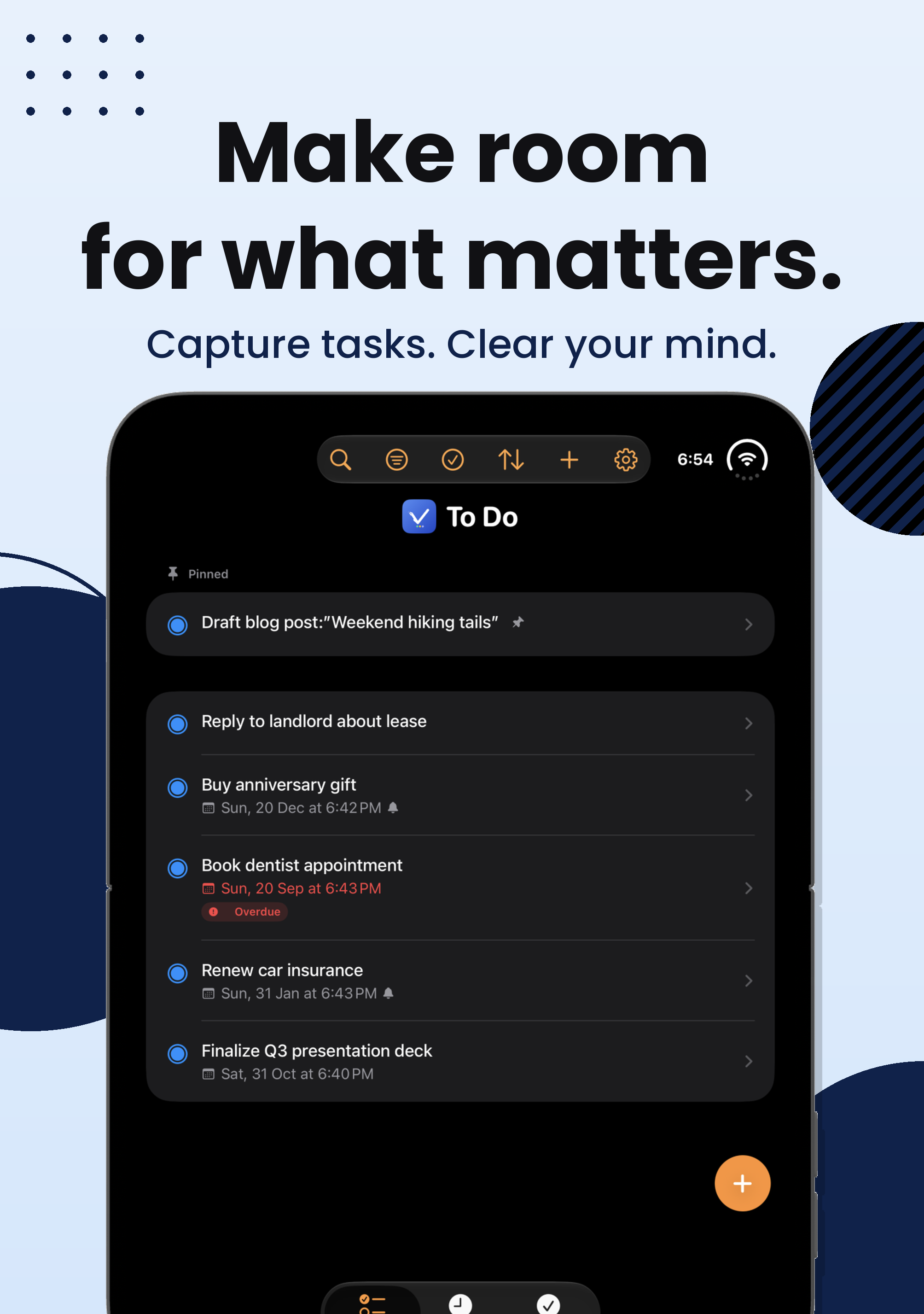
It’s the best way to empty your head. Tap +, type a task, press Return, and the next blank line is already waiting. Turn the phone sideways when you’re done, and everything you just added is on the board.
03 · Fold itStill focused, in your pocket
Folded, iPhone Duo is a regular phone again, and TaskPlate adapts. Turn it sideways and you get two lists side by side: To Do next to In Progress. Want to see what’s finished? Tap Done at the top, and the second column swaps to your Done list.
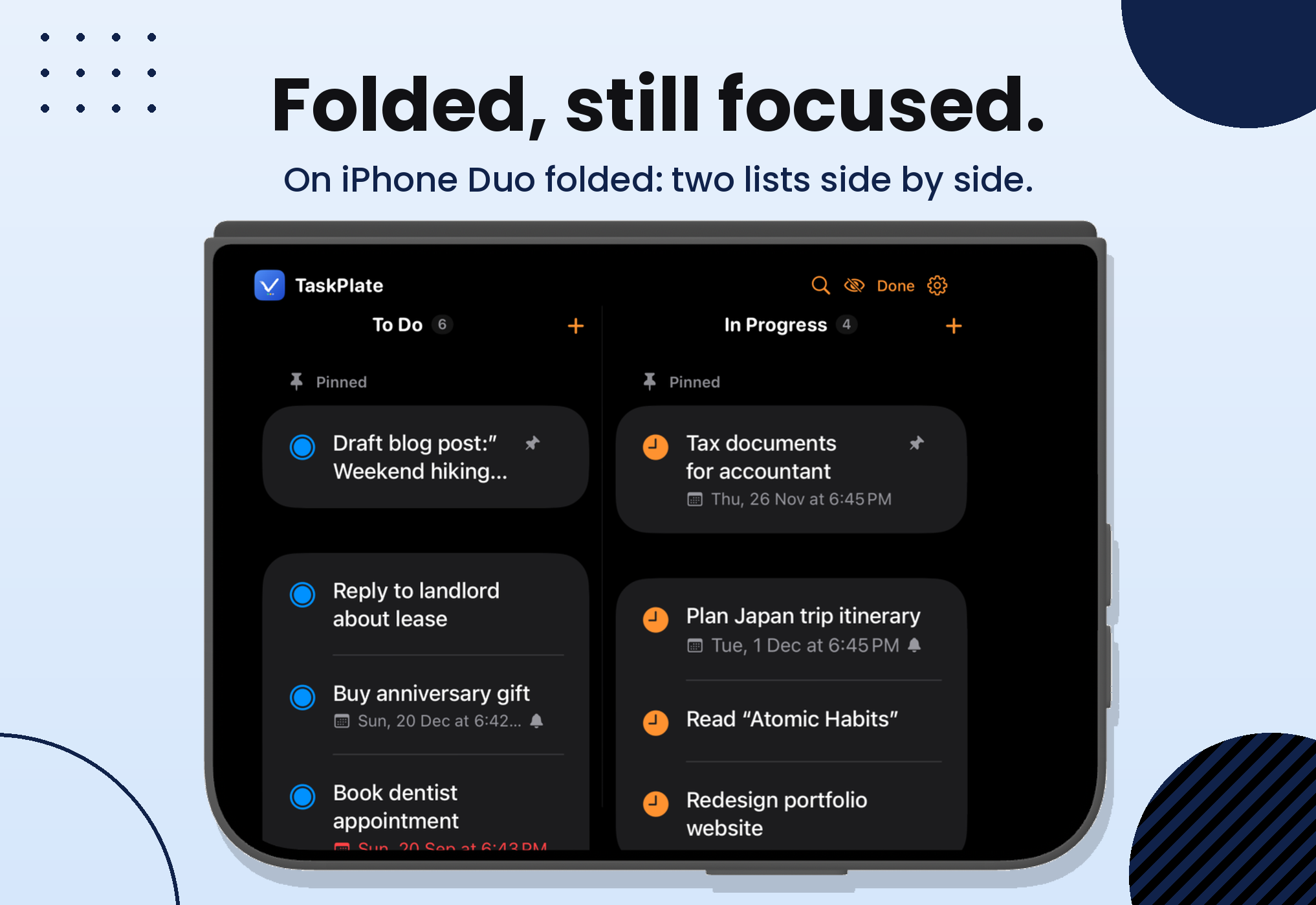
Upright and folded, it’s TaskPlate as you know it, with the controls moved to the side of the screen where your thumb can reach them.
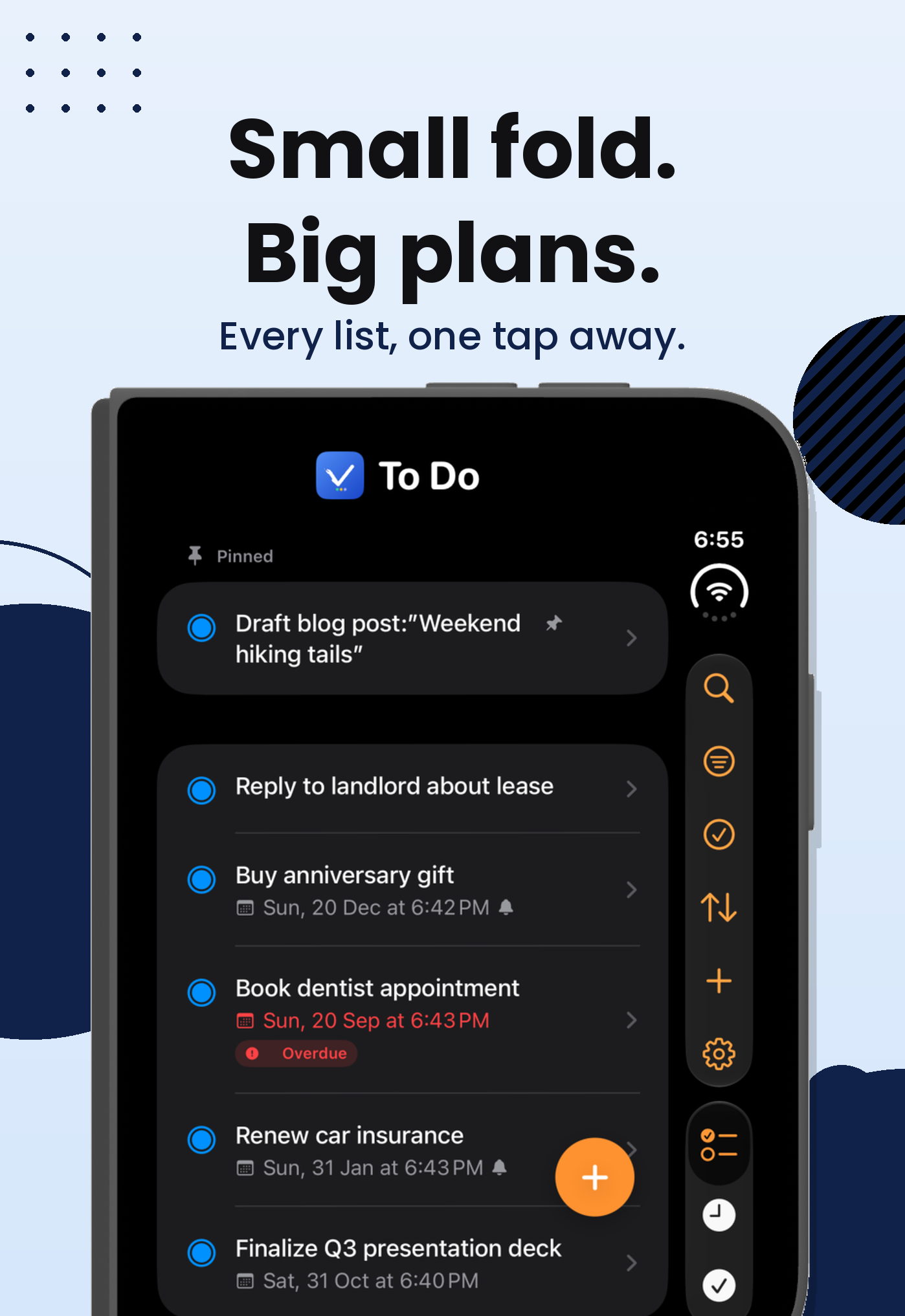
Best of all, you never lose your place. Open a task, fold or unfold the phone, and it’s still open. Start typing a new task and fold mid-word, and what you typed is saved.
04 · Power ModeJust two lists: do it, then done
Some days don’t need a middle step. You’re clearing errands, answering emails, ticking things off. For those days, TaskPlate has a simpler way to work: turn on Hide In Progress in Settings → App Configuration, and TaskPlate becomes two lists, To Do and Done.
Power Mode on iPhone Duo
To Do
- Pay the electricity bill
- Book the car service
- Reply to the landlord
- Order printer ink
Done
- Renew the insurance
- Send the invoice
- Call the bank
Two wide columns: what’s left, and what’s finished.
On iPhone Duo, Power Mode shines. Open the phone sideways and your two lists split the screen in wide, generous columns, with room for long task names and every due date. Fold it, and they still sit side by side. Every task you finish moves straight from left to right, and you watch your To Do column shrink as the day goes on. There’s no simpler, more satisfying way to work through a list.
Turning Power Mode on moves anything in In Progress back to To Do, so nothing gets lost. Switch it off whenever you want the three-list board back.
05 · Why it mattersSimple, private, and finally roomy
TaskPlate was built on a simple idea: a to-do list should be quick to add to, honest about what’s in motion, and out of your way the rest of the time. iPhone Duo doesn’t change that idea. It just gives it room.
And all of it is free, with no account and no subscription.
Unfold your day with TaskPlate
Free on iPhone, iPhone Duo, and iPad, with no subscription and no account. Requires iOS 17 or later.

