Product Walkthrough
TaskPlate: A Simple, Private To-Do App for iPhone and iPad
No accounts, no cloud, no clutter — just three lists and a handful of features designed to keep you moving instead of managing your task manager.
By IdeateOverCoffee · TaskPlate for iPhone & iPad
Most to-do apps solve the wrong problem. They give you tags, projects, custom fields, and sync engines — and somewhere in configuring all of it, the actual task gets lost. TaskPlate takes the opposite approach: it strips task management down to what reliably works, and executes it well. The result is a simple to-do app that opens instantly, requires no setup, and gets out of your way when you’re done.
1Three Lists, No Extra Hierarchy
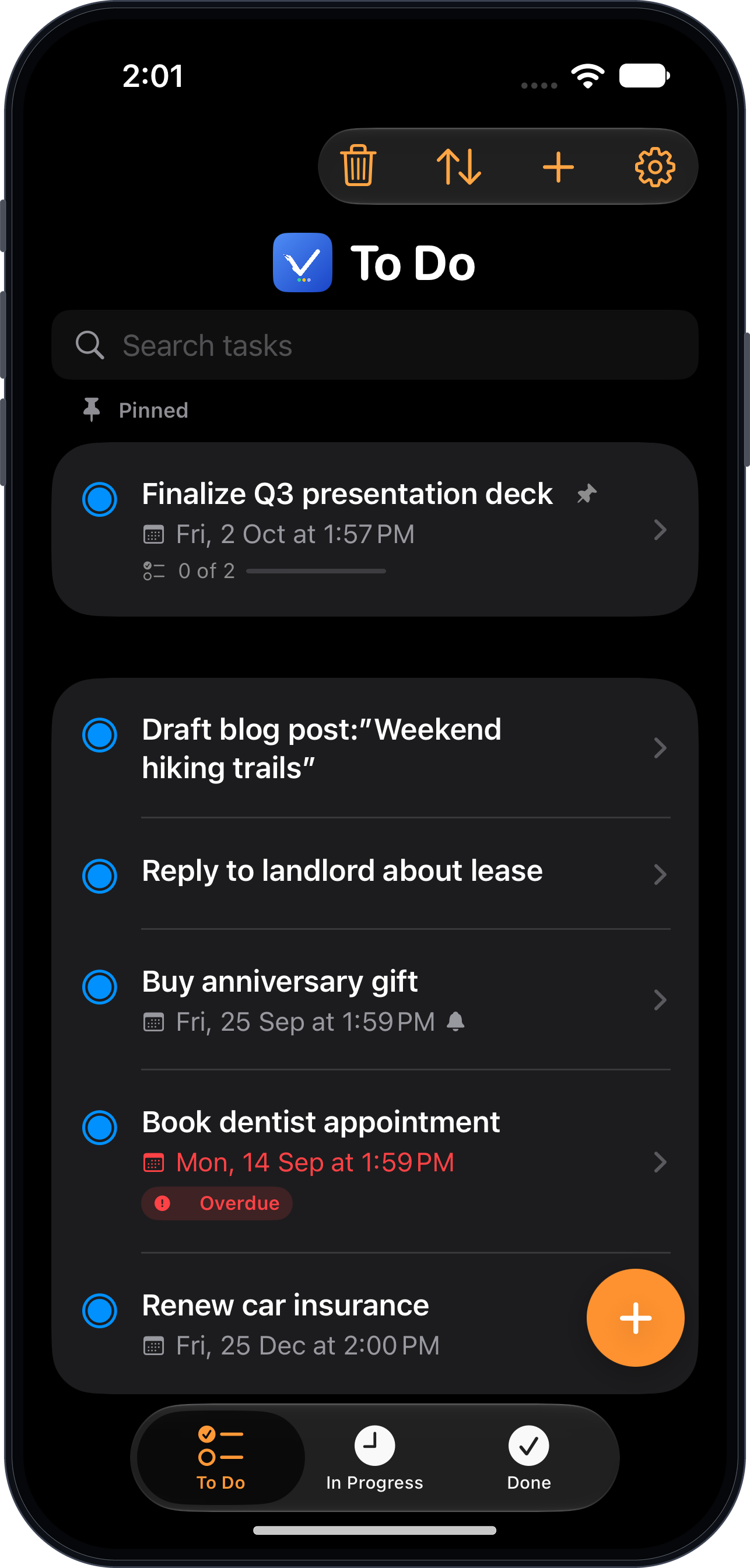
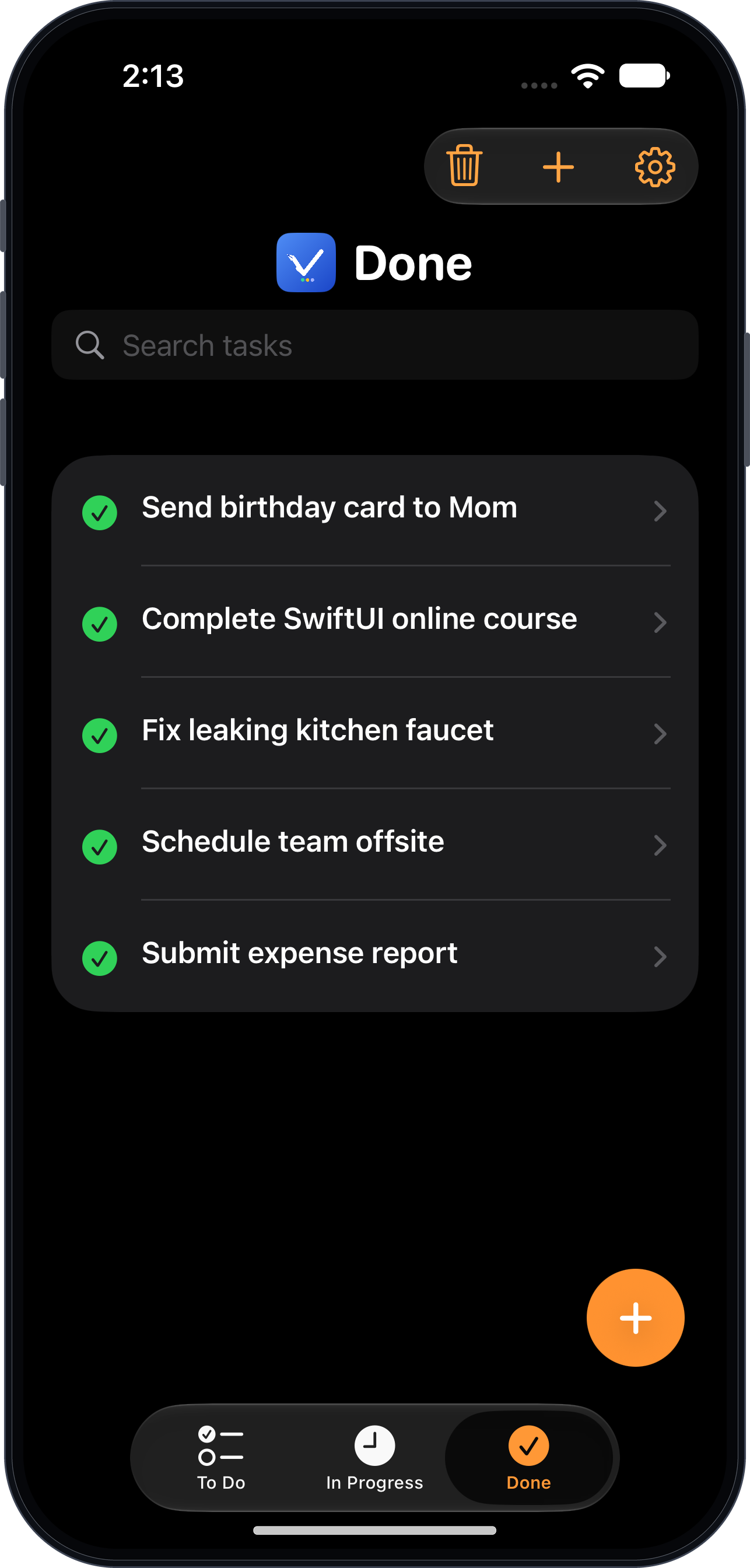
Every task lives in one of three states — To Do, In Progress, or Done — shown as tabs at the bottom of the screen. There’s no folder tree to maintain and no custom workflow to design. You add a task, move it forward as you work on it, and mark it done when it’s finished. That’s the whole model, and it maps directly onto how most people actually think about their day. When you want to know what’s due soon, the filter icon narrows any list to tasks due this week, month, quarter, or year, earliest first — without touching the order you’ve set.
2Pin, Reorder, and Move — Without Losing Your Place
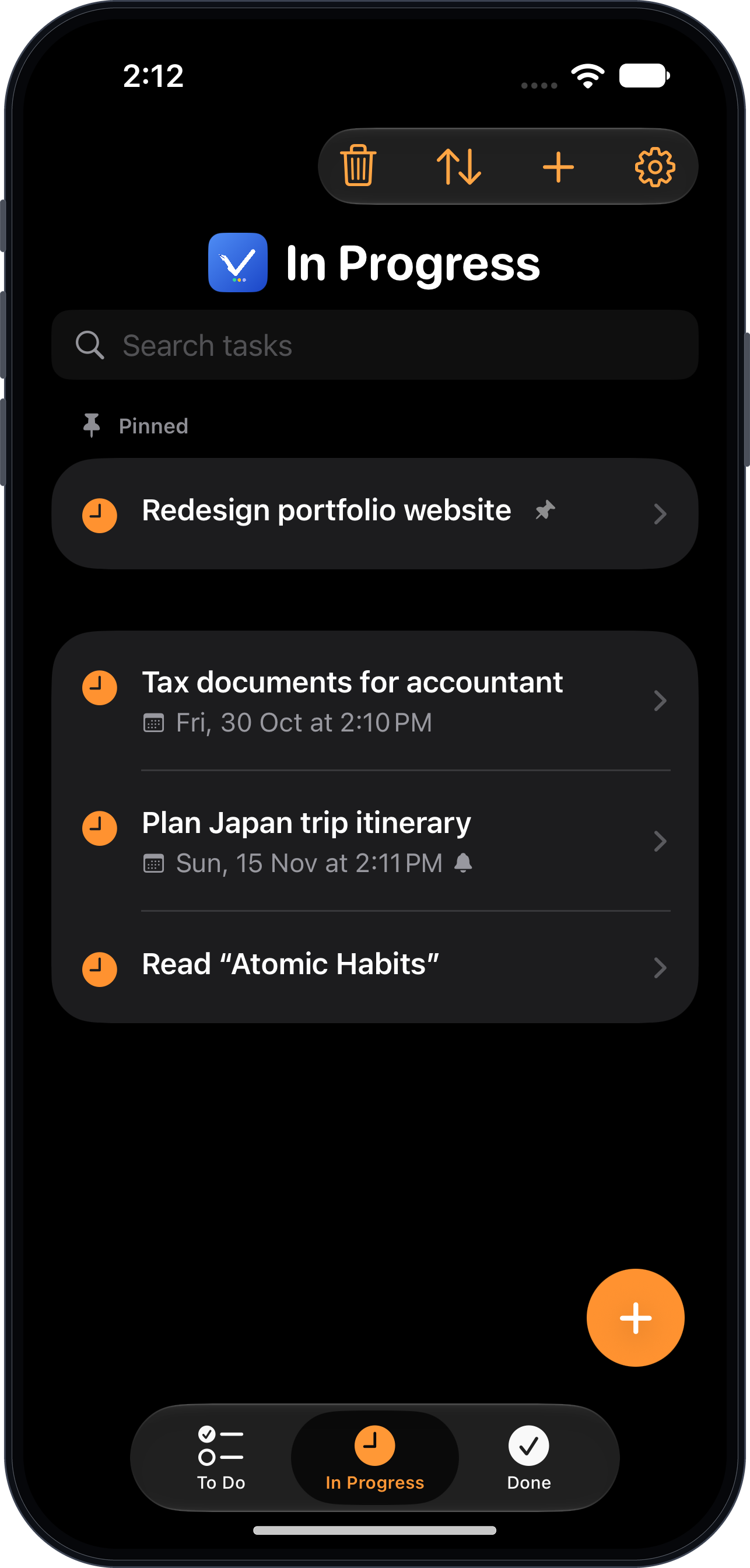
Long-press any task to pin it to the top of its list or move it directly to another status. A pinned “Prepare for meeting” task stays visible above everything else in To Do; when you eventually move it to In Progress, the pin comes with it, and it lands at the top of the new list automatically. You’re never left hunting for a task you just acted on. Finished a batch? Tap Select, tick them, and Move To sends them all at once — to the bottom of the new list, so what’s already at its top stays put, with Undo if you picked the wrong list.
3Checklists That Organize Themselves
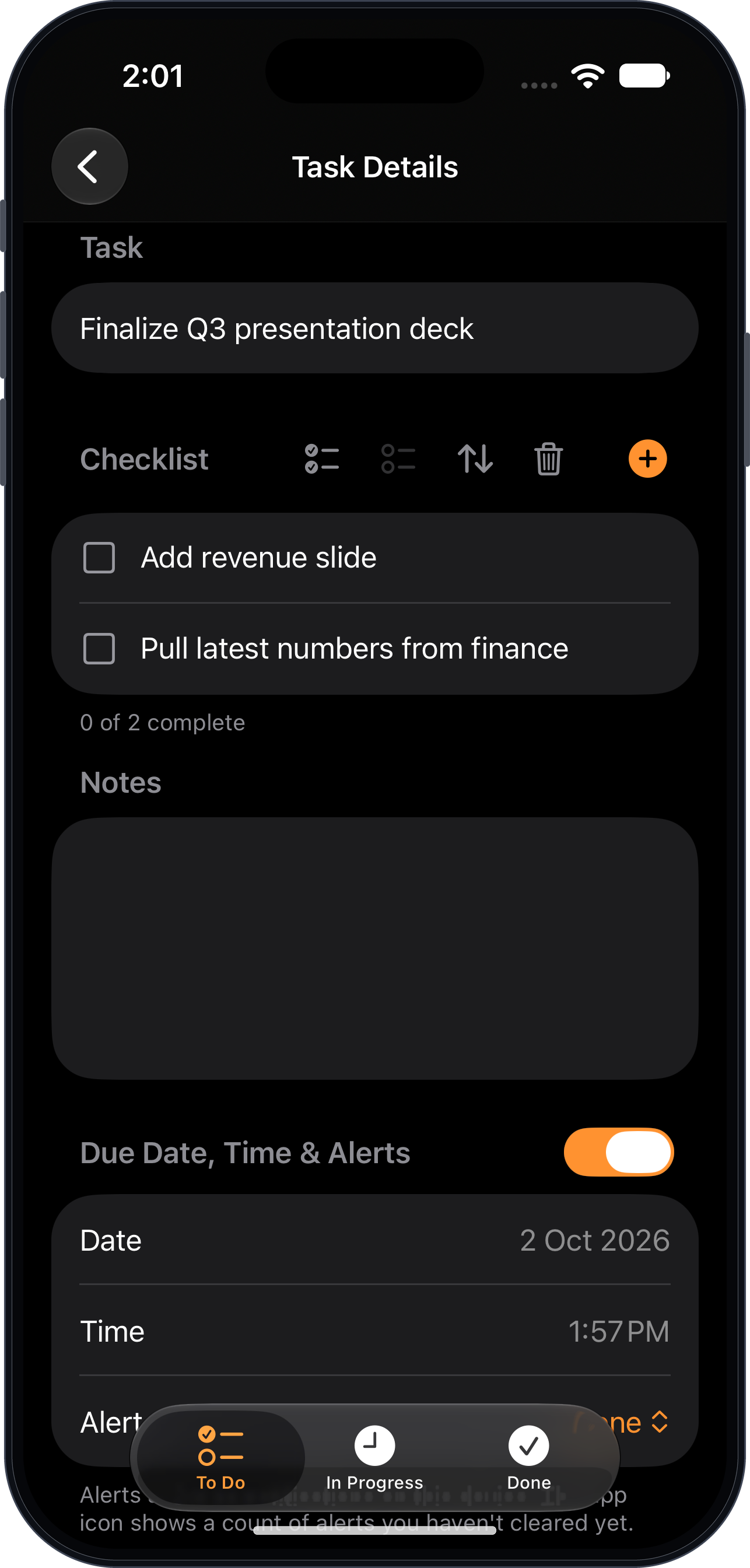
Any task can be broken into a checklist of smaller steps — useful for anything that isn’t really monolithic – like preparing a presentation or shipping a release. Each item gets its own checkbox, and the parent task’s row shows live progress (“2 of 5”) without opening it. Type an item, press Return, and you drop straight into the next one, so a whole list goes in without lifting a finger from the keyboard — and two header shortcuts check or uncheck the entire list in one tap.
For a tidier list, turn on Auto-Sink Checklist: an optional setting that automatically moves a checked-off item to the bottom of its checklist, so the steps still in front of you stay at the top. It’s off by default — some people want their list to hold still — but turning it on instantly reorganizes every checklist you already have, not just the next item you check.
4Set It Once, in Settings
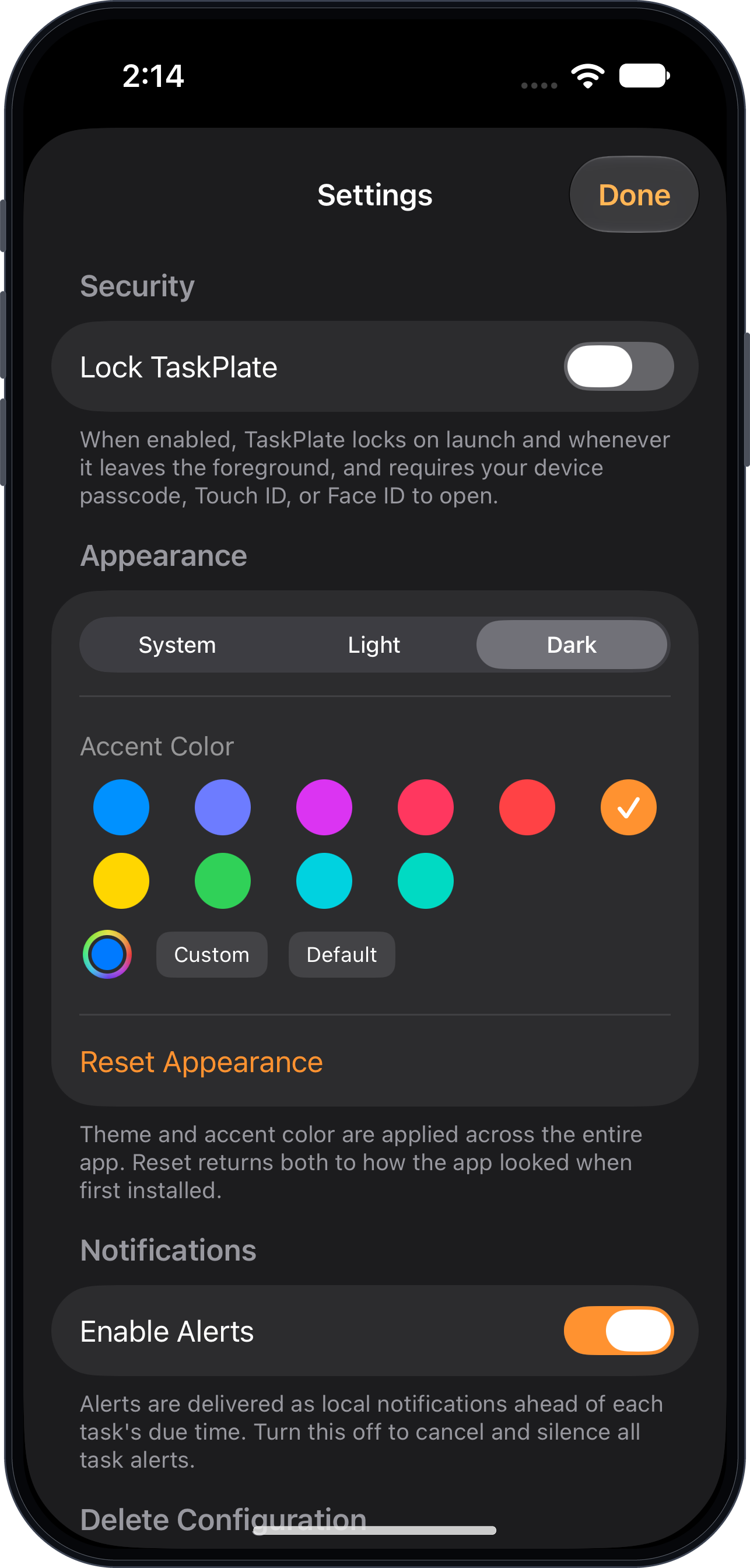
TaskPlate’s configuration is deliberately simple: which tab opens on launch, whether checklist items auto-sink, whether to simplify down to two lists by hiding In Progress, light or dark appearance, an accent color, one of four Color Scheme palettes for a different overall look, and an optional App Lock secured by Face ID or Touch ID. Every one of these is a toggle or a picker — no nested menus, nothing to relearn after an update.
5Privacy as a Feature, Not a Footnote
TaskPlate has no account system, no login, and no server. Every task, note, and checklist item is stored locally on your device using Apple’s SwiftData framework, inside the app’s sandboxed container. There’s nothing to breach because there’s nothing to transmit — alerts are scheduled entirely through iOS’s local notification system, with no push service involved. For a tool that holds your day’s priorities, that’s not a minor detail.
6The Net Effect
None of these features are individually dramatic — that’s intentional. TaskPlate’s productivity gain doesn’t come from a single clever mechanic; it comes from removing friction at every point where a task manager normally asks you to stop and think about the tool instead of the work. Three lists instead of an open-ended hierarchy. One long-press instead of a settings dialog. A checklist that tidies itself instead of one you have to manage. The cumulative effect is an app you open, use for a few seconds, and close — which, for a to-do list, is the entire point.
Frequently Asked Questions
Is TaskPlate free?
Yes. TaskPlate is free to download and use on iPhone and iPad, with no subscription required to manage your tasks.
Does TaskPlate require an account or sign-up?
No. TaskPlate has no account system and no login. You download the app and start adding tasks immediately — there is no email address, password, or sign-up step of any kind.
Where is my data stored?
Entirely on your device. Every task, note, and checklist item is stored in the app’s private sandboxed storage using Apple’s SwiftData framework. TaskPlate has no server, so your data is never transmitted anywhere.
Does TaskPlate sync between my iPhone and iPad?
Not currently. Because TaskPlate keeps everything local to each device, tasks on your iPhone and iPad are kept separately. This is the trade-off that makes the no-account, no-server privacy model possible.
Does TaskPlate work offline?
Yes, completely. TaskPlate never needs an internet connection, because there is nothing to sync and no server to reach. It works identically in airplane mode.
Can I set reminders for my tasks?
Yes — they’re called alerts in the app. You can give any task a due date and schedule an alert ahead of it, from the due time itself up to a week before. Alerts are delivered through your device’s local notification system, so no push service is involved and the content never leaves your phone. Once an alert has arrived it stays counted on the app icon until you clear it, so a notification you glanced at and forgot doesn’t simply vanish.
What devices does TaskPlate support?
TaskPlate runs on iPhone and iPad and requires iOS 17 or later.
TaskPlate
Available now for iPhone and iPad on the App Store. Learn more about TaskPlate.